
Users & Roles
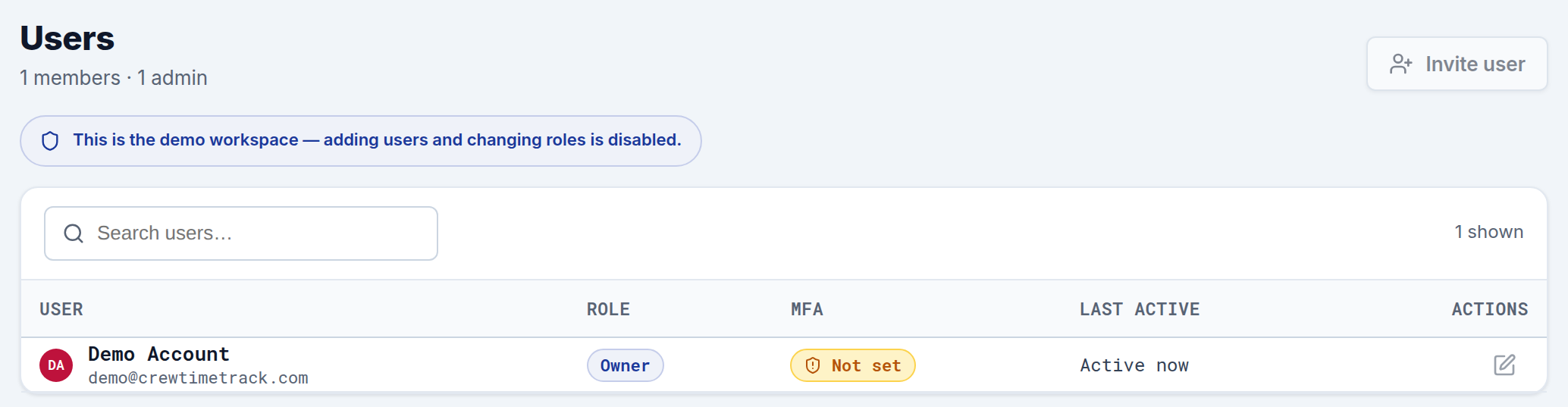
Users are the people on your team who log in to CrewTimeTrack — your office staff and managers. (This is separate from Employees, your field crew, who never log in.) From here you invite teammates, set what they can do, and keep an eye on account security.
Roles
There are three roles:
- Owner — the person who created the workspace and is billed. Full access.
- Admins — can edit everything: schedules, timesheets, jobs, employees, billing, and settings.
- Editors — read-only access to reports and schedules. Use this for people who need visibility but shouldn't change data.
(Owners and admins have the same day-to-day permissions; the owner is just the billing account.)
Two-factor authentication
Each admin sets up two-factor authentication from their own profile, and it's required at login once enabled. If someone loses their device, contact support to reset it so they can log back in and re-enroll.
The user list
Each row shows the person's name and email, their role, whether multi-factor authentication (MFA) is set up, and when they were last active. Pending invites — people who haven't signed in yet — are flagged so you can follow up. Use the search box to find someone quickly. Admins and owners sort to the top.
Inviting a teammate
Click Invite user, enter their email, and pick a role (Editor by default). They receive an email invitation to set up their account and join your workspace.
Changing a role
Use the Edit action on a user's row to update their name or role. Switching someone between Editor and Admin takes effect immediately.
Account security
CrewTimeTrack tracks whether each user has multi-factor authentication enabled and shows it in the list, so you can see who has the extra layer of login protection and encourage the rest to turn it on.