Reports
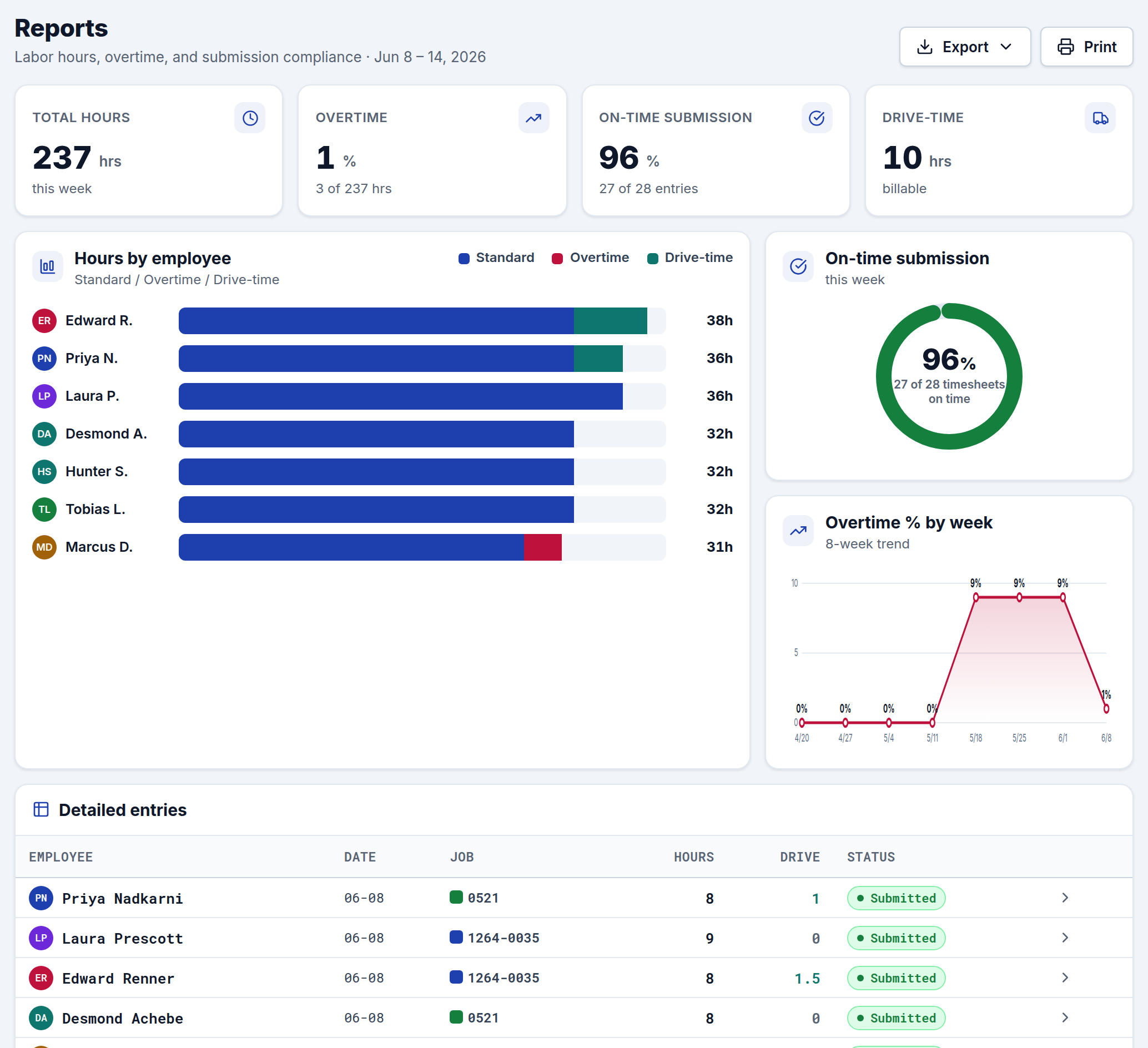
CrewTimeTrack gives you three reports for understanding labor, overtime, and timesheet compliance — one for the whole crew, one per employee in detail, and a crew-wide summary table. All three apply your pay rules to classify hours, so the numbers match your invoices.
Every report works on a selected week (use the week selector in the top bar) and can be exported to CSV, Excel, or JSON.
Reports (crew dashboard)
The main Reports screen is your weekly labor dashboard. At the top, four stats for the selected week:
- Total hours worked.
- Overtime % — the share of hours that fell into overtime, with the raw OT hours.
- On-time submission — the share of entries that were submitted (vs overdue).
- Drive-time — total billable drive hours.
Below that:
- Hours by employee — a stacked bar per crew member showing standard / overtime / drive-time hours.
- On-time submission — a dial showing how many timesheets came in on time.
- Overtime % by week — an 8-week trend line, so you can spot creeping overtime.
- Detailed entries — the full list of the week's entries with hours, drive, and status, totaled at the bottom.
Employee Report (one person, day by day)
The Employee Report drills into a single crew member for the week. Pick the employee from the selector; CrewTimeTrack defaults to whoever has the most entries that week.
It shows the person's profile and base rate, then weekly totals for standard, overtime, drive-time, and per diem, followed by a daily breakdown: for each day, the job worked and the standard / overtime / drive-time / total hours, with a week-total row.
This is the report to print and hand to a crew member or attach to payroll for one person. Use Print for a clean printout.
Employee Summary (whole crew at a glance)
The Employee Summary is a one-row-per-person rollup for the week — a quick way to see everyone's hours side by side. It includes a hours-by-employee chart and a table with each person's standard, overtime, drive-time, total hours, and OT %, with a crew total row. OT percentages at or above 15% are flagged so high-overtime people stand out.
How hours are classified
All three reports use the same engine as invoices. For each crew member, daily hours are tallied and then split:
- Hours beyond your standard work week become overtime.
- Weekend hours (and, if enabled, the seventh consecutive worked day) are overtime.
- Optional daily thresholds can push a day's hours into overtime or double-time.
- Drive time is tracked separately as billable hours.
Adjust any of these under Settings, and every report updates to match.
Hours-only mode
With Show employee wages turned off in Settings, reports hide dollar amounts (such as per-diem dollars and base rates) and show hours and day counts instead.