
Schedule
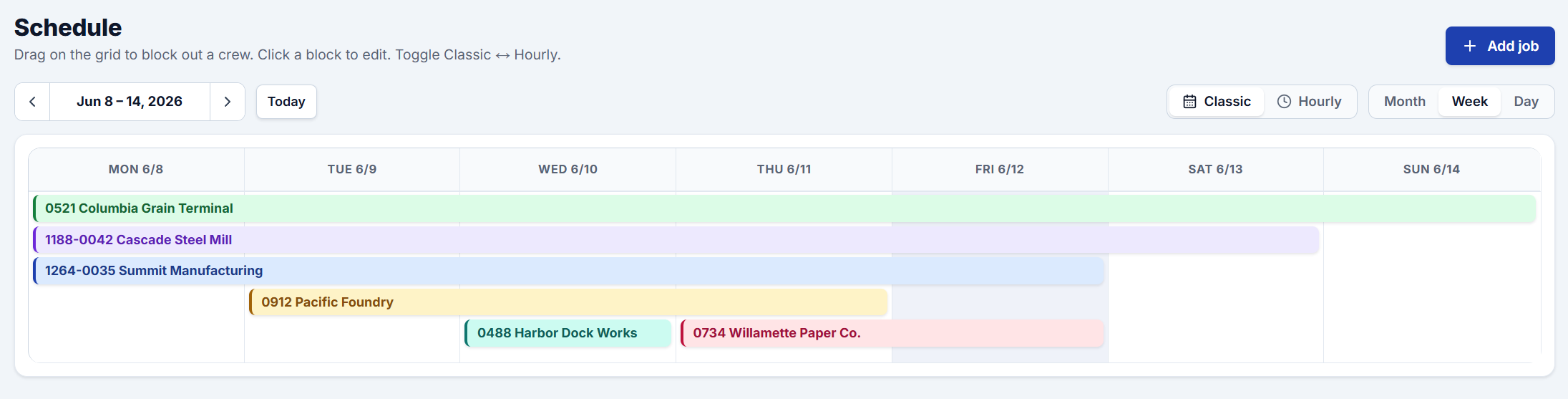
The Schedule is where you block out which crews work which jobs and on which days. It's a week-at-a-glance calendar you build by dragging — no forms to fill out for the common cases. What you schedule here drives the Manpower sheet and tells each crew member which jobs show up on their timesheet link.
The two views
A toggle at the top switches between two ways of looking at the same schedule:
- Classic — horizontal job bars that span across the days they run, the familiar manpower-board look. Best for seeing multi-day jobs at a glance. You can switch between Month, Week, and Day.
- Hourly — a time-grid week where each job's daily shift is placed by its start and end times. Best when several crews share days and you care about the hours.
Creating a scheduled block
- Drag across the grid to block out time — a single day or several days in a row.
- An editor pops up where you set:
- the job,
- the jobsite lead for that block,
- the crew (pick as many people as you need),
- the dates and start/end times.
- The editor shows the computed hours as you adjust the times, so you can sanity-check the shift before saving.
- Save, and the block appears on the calendar in the job's color.
Editing and moving blocks
- Click any block to reopen the editor and change the job, lead, crew, dates, or times.
- In Classic view you can drag a block to move it to different days, or drag its edge to make it longer or shorter.
Night shifts
If a block's end time is earlier than its start time, CrewTimeTrack treats it as a shift that crosses midnight and counts the hours accordingly — you don't have to do anything special for overnight work.
How the schedule connects to the rest of the app
- Crew timesheets: when a crew member opens their timesheet link, they see exactly the jobs they're scheduled on for that day, pre-filled with the scheduled times.
- Manpower sheet: the Manpower sheet rolls the week's blocks up into a printable crew-assignment grid by job.
- Available crew: anyone not assigned to a block in a given week shows up as Available / Unassigned, so you can see who's free to staff.
- Holidays & the week: the calendar starts on the day you pick in Settings → Work Rules (Sunday or Monday). Scheduling a crew on a day you've set as a holiday is fine — those hours are simply paid at the holiday rate when the timesheet comes in.
Tips
- Give each job a distinct color (set on the job) so it's easy to track across the week.
- Set a jobsite lead on the block so the field knows who's running the job.