
Employees
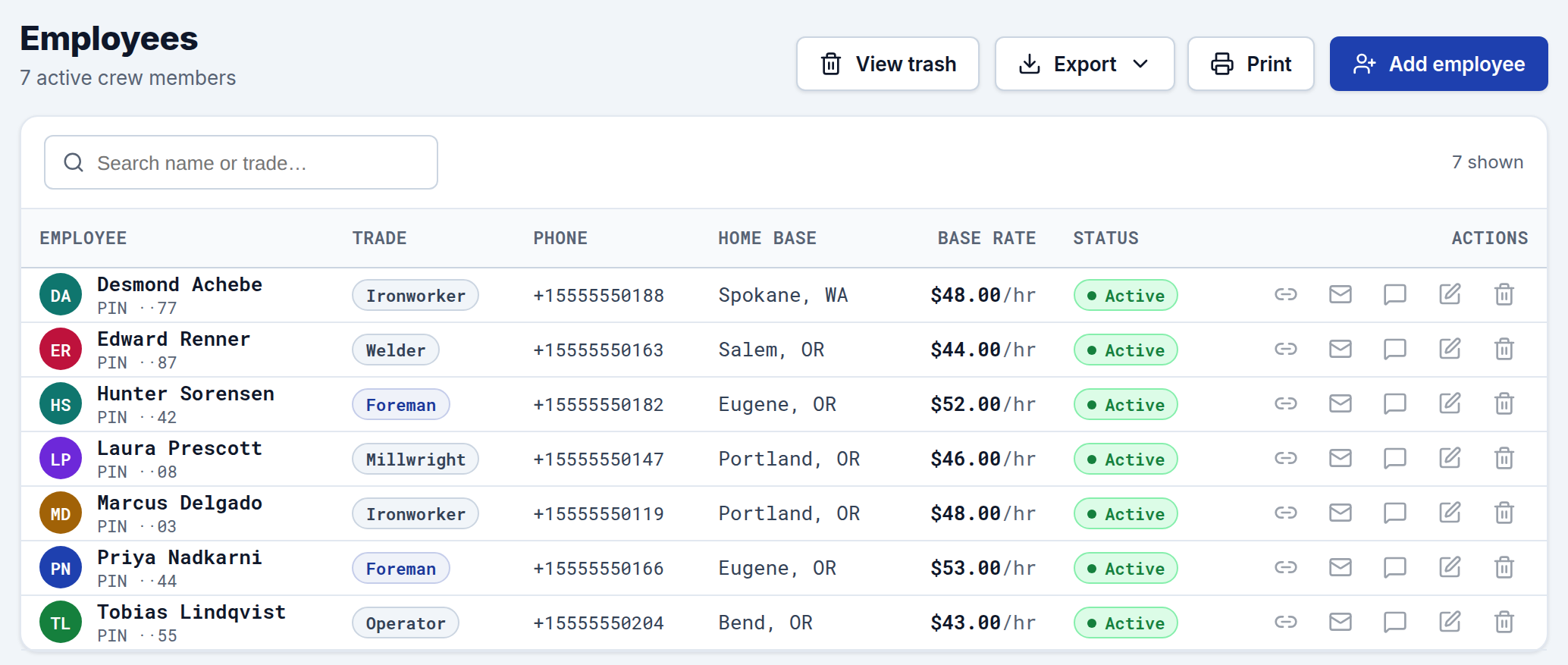
Employees is your crew roster — every field worker you schedule and track time for. From here you add crew members, keep their details current, and grab the private timesheet link you send them to collect hours.
The roster
The list shows each active crew member with their name, trade, phone, home base, base rate, and status. Use the search box to filter by name or trade. The roster shows active crew; archived members are kept out of the way.
Adding a crew member
Click Add employee and fill in:
- Full name (required).
- Trade — e.g. Welder, Foreman, Electrician.
- Phone — used for texting their timesheet link and group texts.
- Home base — their home city, used as the starting point for the per-diem distance rule.
- Base rate — their hourly pay rate, used by invoices and reports. (Hidden if your workspace is in hours-only mode — see below.)
- PIN — an optional short code for the crew member.
- Can be a jobsite lead — check this if they can run a job in the field.
Editing and managing
Each row has quick actions:
- Edit — update any of the details above.
- Get timesheet link — generates the crew member's private timesheet link and shows a copy button. Send it by text or email and they can submit hours with no login. See Crew Timesheet Link. Issuing a new link doesn't revoke older ones.
- Send text message — message the crew member directly.
Base rates and hours-only mode
Base rate drives pay math on invoices and reports. If you'd rather not show wages in the app, turn off Show employee wages under Settings → Branding. In hours-only mode, base-rate fields and all dollar amounts are hidden everywhere, and the app shows hours and day counts instead.
Exporting
Use the Export menu (top-right) to download the roster as CSV, Excel, or JSON.