
Settings
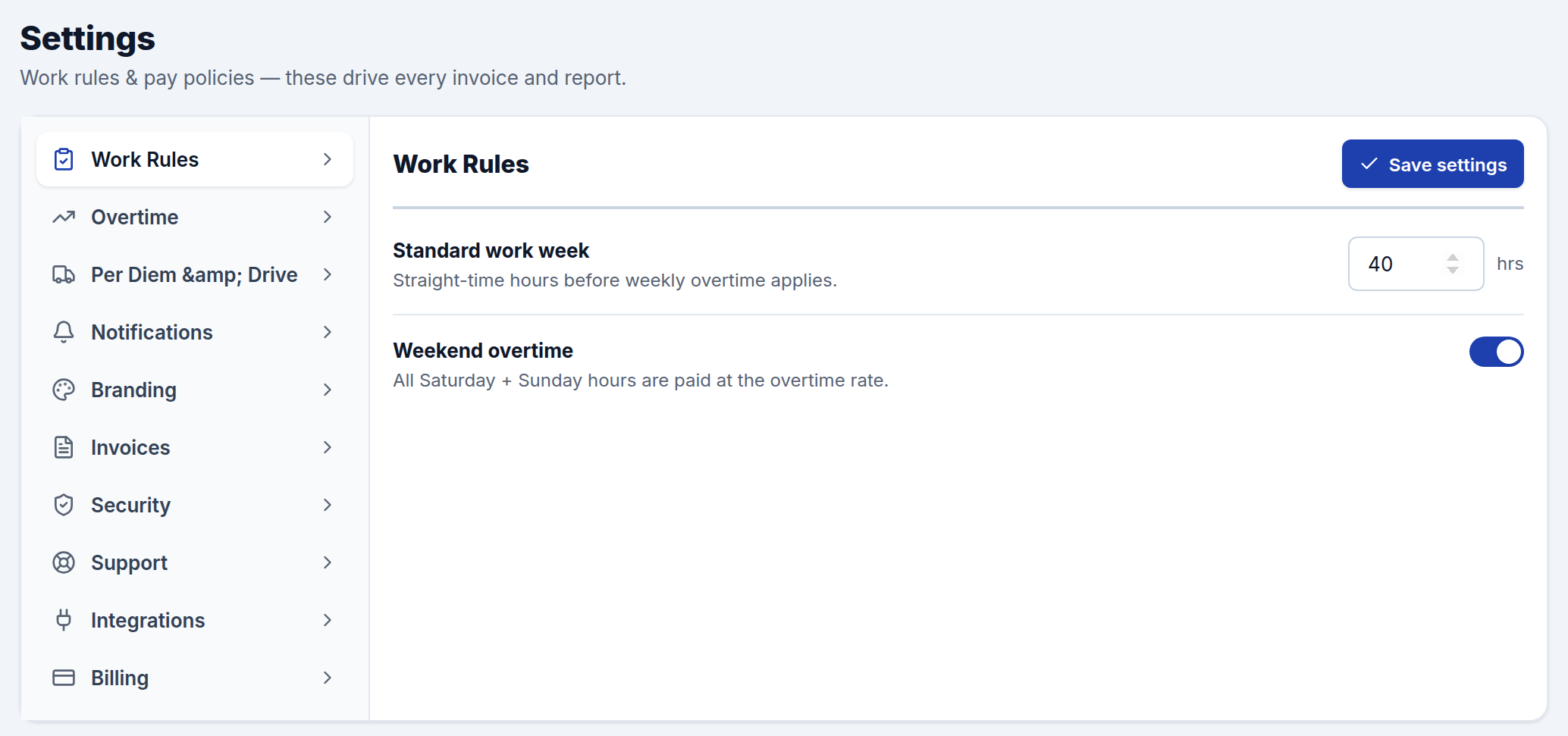
Settings is where you tune CrewTimeTrack to how your company actually pays and bills. The work rules here — overtime, per diem, lunch — drive every invoice and report, so they're worth getting right. Settings is organized into tabs down the left; one Save settings button at the top-right saves the whole panel.
Work Rules
The core pay policy:
- Time zone — your crew's local time zone. Sets what counts as "today" for timesheets and which calendar day the work week lands on.
- Start of week — which day the schedule, manpower sheet, and reports treat as the first day of the week (e.g. Sunday or Monday).
- Standard work week — how many straight-time hours a crew member works in a week before weekly overtime kicks in (commonly 40).
- Weekend overtime — when on, all Saturday and Sunday hours are paid at the overtime rate.
- Timesheet lock window / Timesheet preview window — how many days after a work day a crew member can still edit it, and how far ahead/behind they can browse with the arrows on their timesheet link.
Overtime
Fine-tune how overtime and double-time are calculated:
- Overtime multiplier — the rate applied to OT hours (e.g. 1.5× base).
- Double-time multiplier — the rate applied to double-time hours (e.g. 2× base).
- Daily OT threshold — hours in a single day before that day starts earning OT. Leave blank to turn daily OT off.
- Double-time threshold — hours in a single day before they're paid at double-time. Leave blank to turn double-time off.
- Seventh-day rule — when on, every hour worked on the seventh consecutive day is OT.
This tab also holds holiday pay (the dates themselves live on the Holidays tab):
- Holiday pay — turn on premium pay for hours worked on a configured holiday.
- Holiday rate — the rate for holiday hours up to the threshold below (commonly 2×).
- Holiday overtime rate — the rate for holiday hours past the threshold, i.e. "double-time-and-a-half" (commonly 2.5×).
- Holiday OT threshold — hours worked on a holiday before the holiday-overtime rate applies (commonly 8). Leave blank for one flat holiday rate.
- Count holiday hours toward the 40 — off by default (holiday hours are already premium and don't push the rest of the week into weekly overtime). Turn it on if your shop counts them toward the weekly 40.
These combine sensibly: a configured holiday takes precedence and is paid at the holiday rate; otherwise weekend and seventh-day hours are overtime; on weekdays, daily thresholds apply first, then any straight-time hours beyond your weekly standard convert to overtime.
Holidays
Set the days your crew gets premium pay. Each holiday is either:
- A single date — a one-off, e.g. a company shutdown day.
- A repeating rule — recurs every year, including tricky ones like "the 3rd Thursday of October" or "the last Monday of May." Turn on Observe weekend so a holiday that lands on a Saturday or Sunday is billed on the nearest weekday (the way most US federal holidays are taken).
Click US federal holidays to load the standard 11 at once, then remove any your crews don't get paid premium for. Each row shows when it repeats and the next date it falls on.
The holiday rates and the on/off switch live on the Overtime tab. With holiday pay on, worked-holiday hours show up as Holiday (and Holiday OT) on the employee's timesheet, across Reports, and as their own line items on invoices.
Per Diem & Drive
- Per diem rate — the daily allowance for qualifying out-of-town days.
- Per diem distance — the minimum one-way miles from your shop for a day to qualify for per diem. Days closer than this don't get the allowance.
Drive time itself is entered on each timesheet entry and paid at the base rate; these settings govern the per-diem allowance.
Lunch
CrewTimeTrack deducts an unpaid 30-minute meal break on shifts long enough to qualify. When a crew member checks "I took a lunch break" on their timesheet link, or when an admin selects auto-lunch on Add Time Entry, the break is deducted from qualifying shifts before paid hours are calculated.
Branding
Make the app yours:
- Company logo — shown in the sidebar and on invoice letterhead. Stored privately and served through the app.
- Show employee wages — turn off for hours-only mode: base rates and all dollar amounts are hidden across Employees, Invoices, and Reports.
- Hide CrewTimeTrack logo — show only your logo in the top-left (white-label, available on the Crew tier and above).
- Brand color and Font — override the app's accent color and typography across the admin app, crew pages, and invoices. Available on the Crew tier and above; on lower tiers you'll see an upgrade prompt instead.
Invoices
Set what appears on every invoice:
- Legal company name — shown on the invoice letterhead (defaults to your workspace name).
- Payment terms — e.g. Net 30.
- Footer note — a closing line, such as a thank-you and a billing contact.
Notifications
Set the rules for when CrewTimeTrack reaches out:
- Weekly schedule send — text/email each crew their week (jobsite, lead, report time) on the day you choose.
- Overdue timesheet alerts — nudge workers who haven't submitted, and flag them for admins.
- Overtime alerts — flag admins when an employee's weekly hours cross a threshold you set.
The rules save immediately. Text delivery turns on once crew texting (Telnyx) is connected; email uses your email integration.
Emails
Customize the emails your workspace sends — proposals, invoices, timesheet links — plus the header/footer wrapped around all of them (logo, signature). Each template has Edit (with a merge-tag picker), Preview, and Send test buttons. See Email templates for the full guide.
Security
Two-factor authentication is managed from your own profile — open Users, click your name, and set up an authenticator app. It's strongly recommended for every admin. If you ever lose your device, contact support to reset it so you can log in and re-enroll.
Support
Allow support access lets CrewTimeTrack support view your workspace read-only to help troubleshoot — it's off by default, and you can turn it back off anytime. Optionally turn on Hide wages from support so pay rates and dollar amounts stay private even while access is on. Support never signs in as you or changes your data, and every support view is logged.
Integrations
Connect CrewTimeTrack to the services it uses:
- Email — sends invoices, timesheet links, and reminders. Send a test message to your own address to confirm delivery.
- Object storage — stores your logo and uploads privately, served through the app.
- Payroll & job-cost tools — connections to systems like QuickBooks, ADP, and Procore, plus crew texting, are set up here. In the meantime, the CSV / Excel / JSON exports on every screen cover payroll handoff.
Billing
Manage your subscription: see your current plan and renewal date, upgrade or change plans, open the billing portal to update payment details, and download your past payment receipts.