
Timesheets
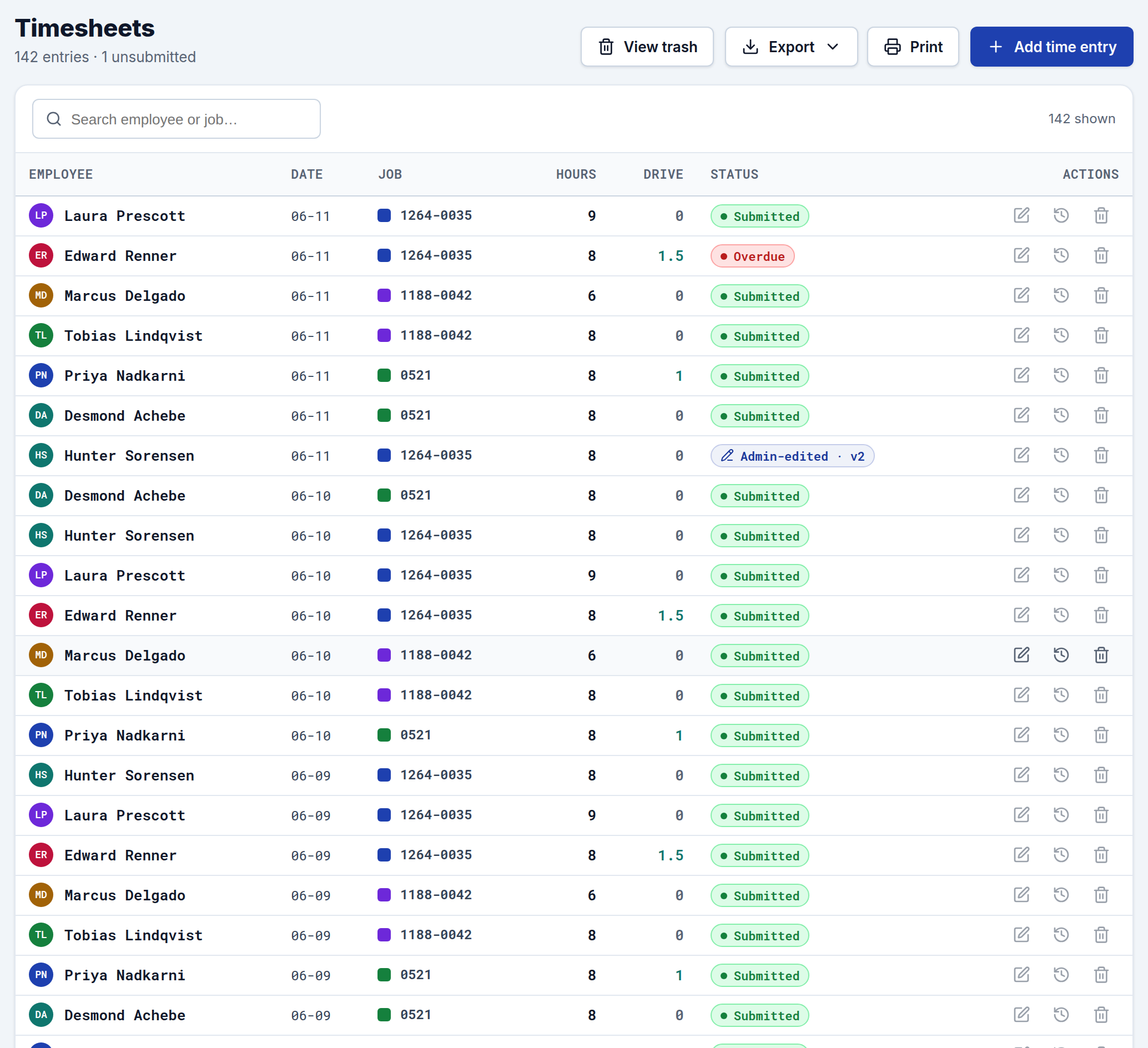
Timesheets is your master list of every time entry — one row per crew member, per job, per day. From here you review what crews submitted, correct mistakes, and keep an auditable trail of every change. It's the source of truth that feeds your invoices and reports.
The list
Each row shows the employee, work date, job, worked hours, drive time, and a status:
- Submitted — the crew member sent in their hours.
- Overdue — an entry exists but hasn't been submitted yet.
- Admin-edited · v2 (or higher) — an admin made a correction; the number is how many versions the entry now has.
Use the search box to filter by employee or job. A badge in the sidebar also flags how many entries are still unsubmitted, so nothing slips through.
Every entry keeps its full history
This is the heart of CrewTimeTrack's timesheet handling: the crew member's original submission is never overwritten.
When an admin edits an entry — hours, lunch, drive time, or a note — CrewTimeTrack saves the change as a new version and keeps the original (version 1) intact. This protects you in payroll disputes and audits: you can always show exactly what the employee submitted and what was changed afterward, by whom and when.
Editing an entry
Click the edit (pencil) icon on any row to open the entry. The edit screen has three parts:
- The editable entry — start/end times, lunch, drive time, and a note. Saving appends a new version.
- Original vs current — a side-by-side comparison of worked hours, drive time, and notes, with changed fields highlighted, so you can see what's different from the original submission.
- History — an audit timeline from version 1 forward, each entry tagged Original submission or Admin edit, with a timestamp and any note attached.
Trash (soft-delete)
Deleting an entry doesn't erase it — it moves to Trash. Use View trash to see soft-deleted entries; this keeps deletions reversible and auditable. Active and trashed entries are kept separate so your working list stays clean.
Adding entries
- Crews submit their own through their timesheet link.
- Admins can enter time for one or more crew across multiple days at once with Add Time Entry.
Exporting
Use the Export menu (top-right) to download the timesheet list as CSV, Excel, or JSON — handy for payroll handoff. Exports carry whatever filters you have applied.