
Jobs
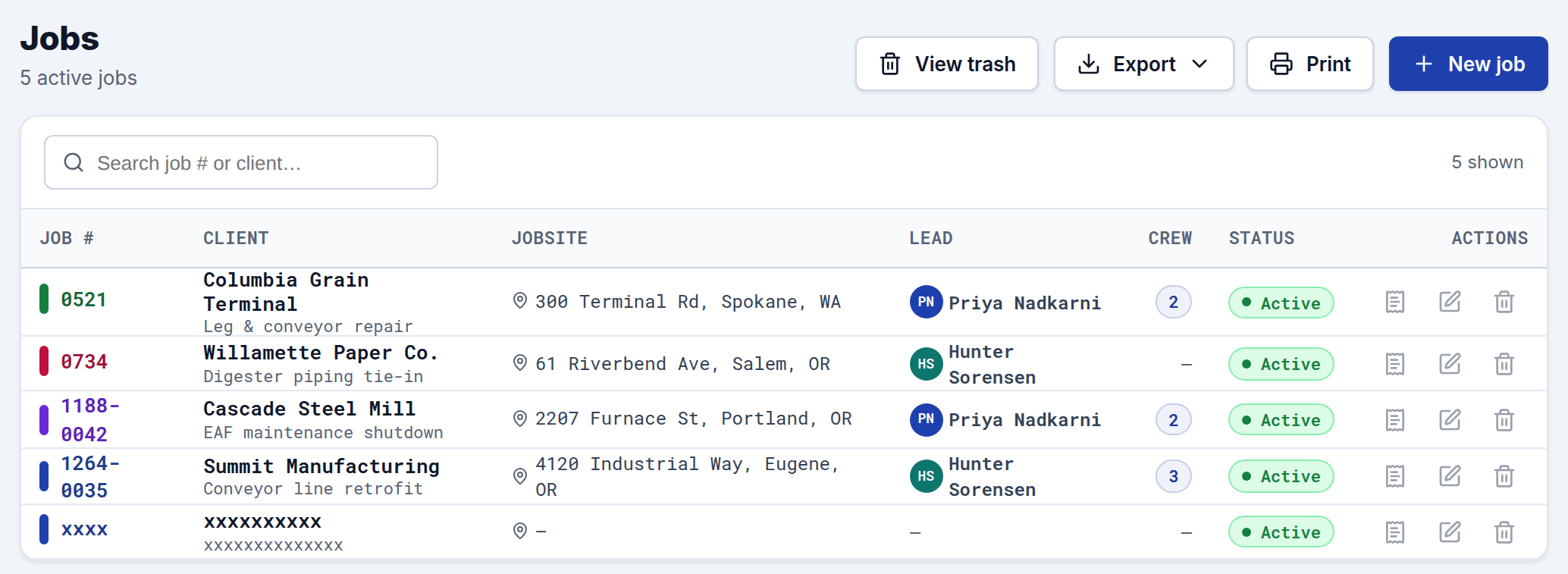
Jobs are the projects you schedule crews against and bill clients for. Every scheduled block, timesheet entry, and invoice ties back to a job, so setting these up well keeps the rest of the app organized.
The job list
The list shows each active job with its job number, client, jobsite, jobsite lead, crew count (distinct people scheduled on it), and status. Use the search box to filter by job number or client.
Creating a job
Click New job and fill in:
- Job number — your internal number for the project (e.g. 1264-0035).
- Client / Customer (required) — who you're billing. With Job HQ on, this field is labeled Customer and autocompletes from your customer list: pick an existing customer to link the job, or type a new name to create the customer on the spot. (Without Job HQ it's a plain client name.)
- Scope — a short description of the work.
- Jobsite address — where the crew reports; shown on the schedule, manpower sheet, and the crew's timesheet link.
- PO number — the client's purchase order, shown on the invoice.
- Jobsite lead — the crew member running the job (pick from your roster).
- Color — pick a color so the job is easy to spot on the schedule, manpower sheet, and timesheets.
Editing and quick actions
Each row has:
- Create invoice — jumps straight to the invoice for that job.
- Edit — update any job detail, including the lead and color.
How jobs connect to the rest of the app
- Schedule: you assign crew to jobs on the Schedule; the job's color carries through everywhere.
- Crew count: the count on each row reflects the distinct crew scheduled on the job.
- Timesheets & invoices: every time entry is logged against a job, and invoices are generated per job using that job's hours.
Exporting
Use the Export menu (top-right) to download your jobs as CSV, Excel, or JSON.