
Invoices
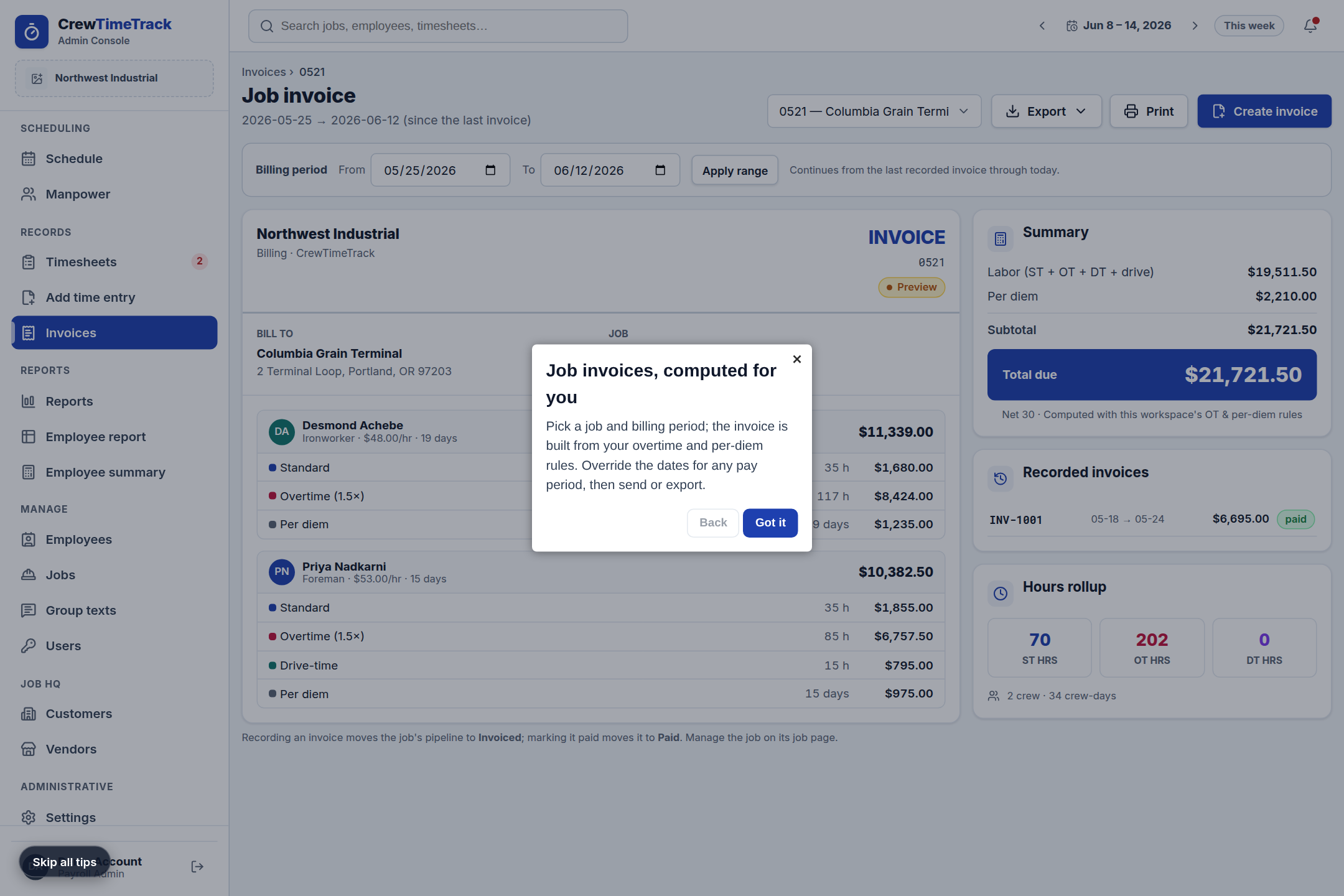
The Invoices screen turns a job's collected hours into a client-ready invoice. It groups the time by crew member, applies your pay rules to split the hours into standard, overtime, double-time, and drive time, adds per diem, and totals it all up — so billing matches exactly how the work was paid.
Creating an invoice
- Pick the job from the selector in the top bar.
- Check the billing period. Once a job has a recorded invoice, the period automatically continues from the day after the last invoice through today — so periods never overlap and nothing falls through the cracks. A job's first invoice defaults to the selected week. You can always set a custom From / To range.
- The preview fills in with the letterhead, bill-to, and line items per crew member. With Job HQ, the bill-to uses the job's customer (name + billing address).
- Click Create invoice. This records the invoice — it gets the next invoice number (INV-…) and the period, lines, and totals are frozen, so changing pay rates or work rules later never alters an invoice you already sent.
Recorded invoices
Every recorded invoice is listed in the Recorded invoices panel and has its own page where you move it through its life: Draft → Sent → Paid (or Void a mistake — voided periods are ignored when computing the next default period). The page prints cleanly, so "Save as PDF" works from any browser.
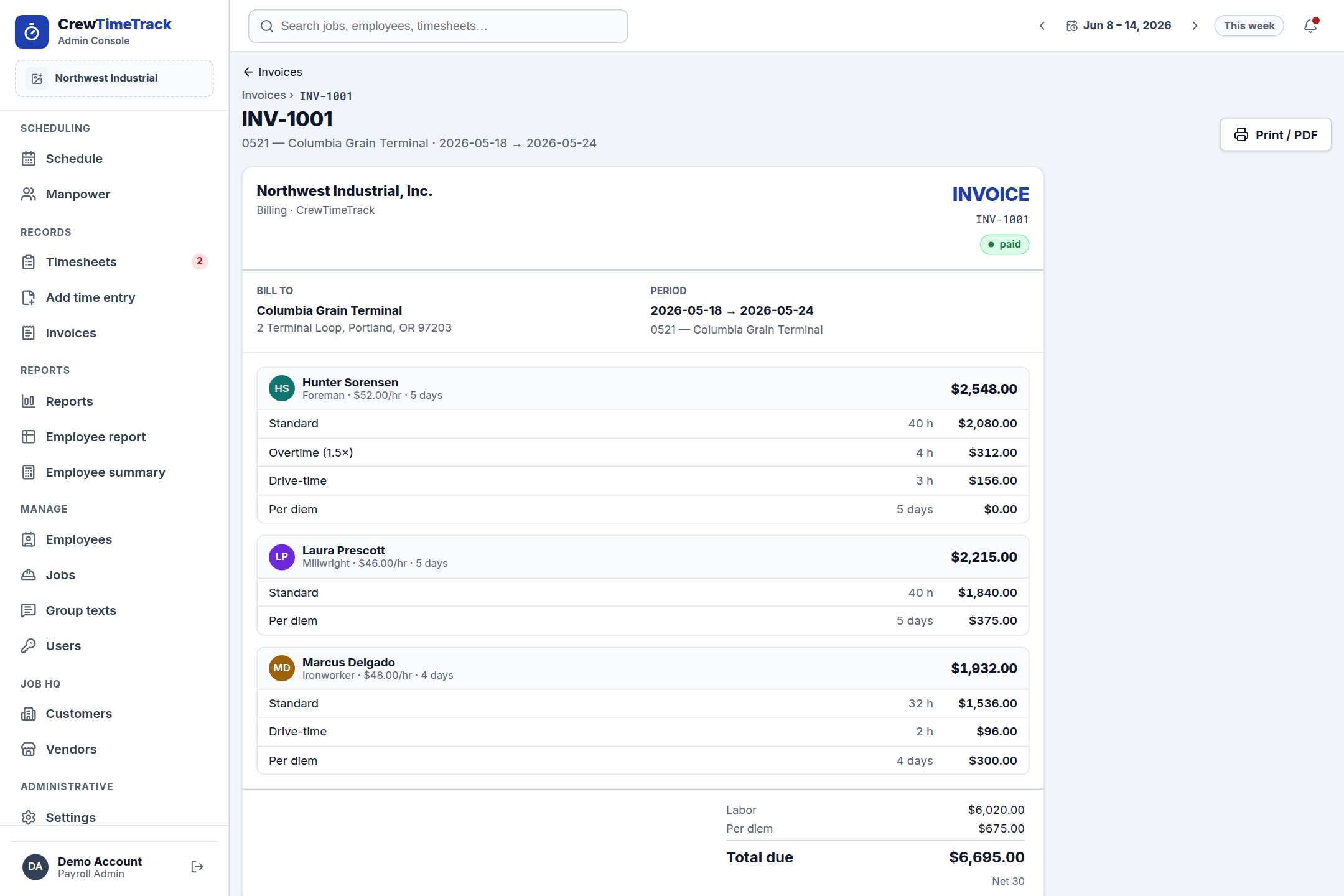
With the Job HQ add-on, recording an invoice moves the job's pipeline to Invoiced, and marking it paid moves the job to Paid.
What's on the invoice
The invoice uses an INVOICE letterhead with your legal company name and footer (set under Settings → Invoices), the client and jobsite in the bill-to, and the job number, scope, and PO.
For each crew member it lists only the line items that apply:
- Standard hours at the base rate.
- Overtime at the base rate × your OT multiplier (e.g. 1.5×).
- Double-time at the base rate × your DT multiplier (e.g. 2×), when your rules use it.
- Holiday at the base rate × your holiday multiplier (e.g. 2×), and Holiday OT at your holiday-overtime multiplier (e.g. 2.5×), when a day is on your holiday calendar.
- Drive-time at the base rate.
- Per diem for the qualifying days worked.
A Summary panel shows labor (standard + OT + DT + holiday + drive), per diem, and the total due, along with your payment terms. An Hours rollup breaks out total ST / OT / DT / Holiday hours and the crew-day count.
How the math works
CrewTimeTrack applies your workspace's pay rules to the entries in the billing period:
- Hours are tallied per crew member per day, then classified into standard, overtime, double-time, and holiday. Hours past your standard work week become overtime; weekend hours and (if enabled) the seventh consecutive day are overtime; daily thresholds can push hours to overtime or double-time.
- Holiday days (set on the holiday calendar, Settings → Holidays) take precedence: every hour worked that day is paid at your holiday rate, up to the holiday-OT threshold, then at the holiday-overtime rate. By default holiday hours don't count toward the weekly 40 — they're already premium — but that's a setting if your shop does it the other way.
- Each bucket is priced at the crew member's base rate times the matching multiplier; drive time is paid at base rate.
- Per diem is added for each qualifying day worked, based on your per-diem rate and the minimum-distance rule.
Because invoices and reports share the same rule engine, the numbers stay consistent across the app.
Hours-only mode
If you've turned off Show employee wages in Settings → Branding, the invoice hides all dollar amounts and shows hours only. Turn wages back on in Settings to see amounts again.
Exporting and sending
- Export the invoice data (CSV, Excel, JSON) from the top-right menu for your records or accounting handoff.
- Email invoice sends the customer a summary (invoice number, period, totals, your payment terms) using your invoice email template — customize it under Settings → Emails. Emailing a draft marks it Sent.
- Print / PDF produces the detailed printable copy — attach it to the email reply if the customer wants line-by-line detail.