
Job HQ — job management
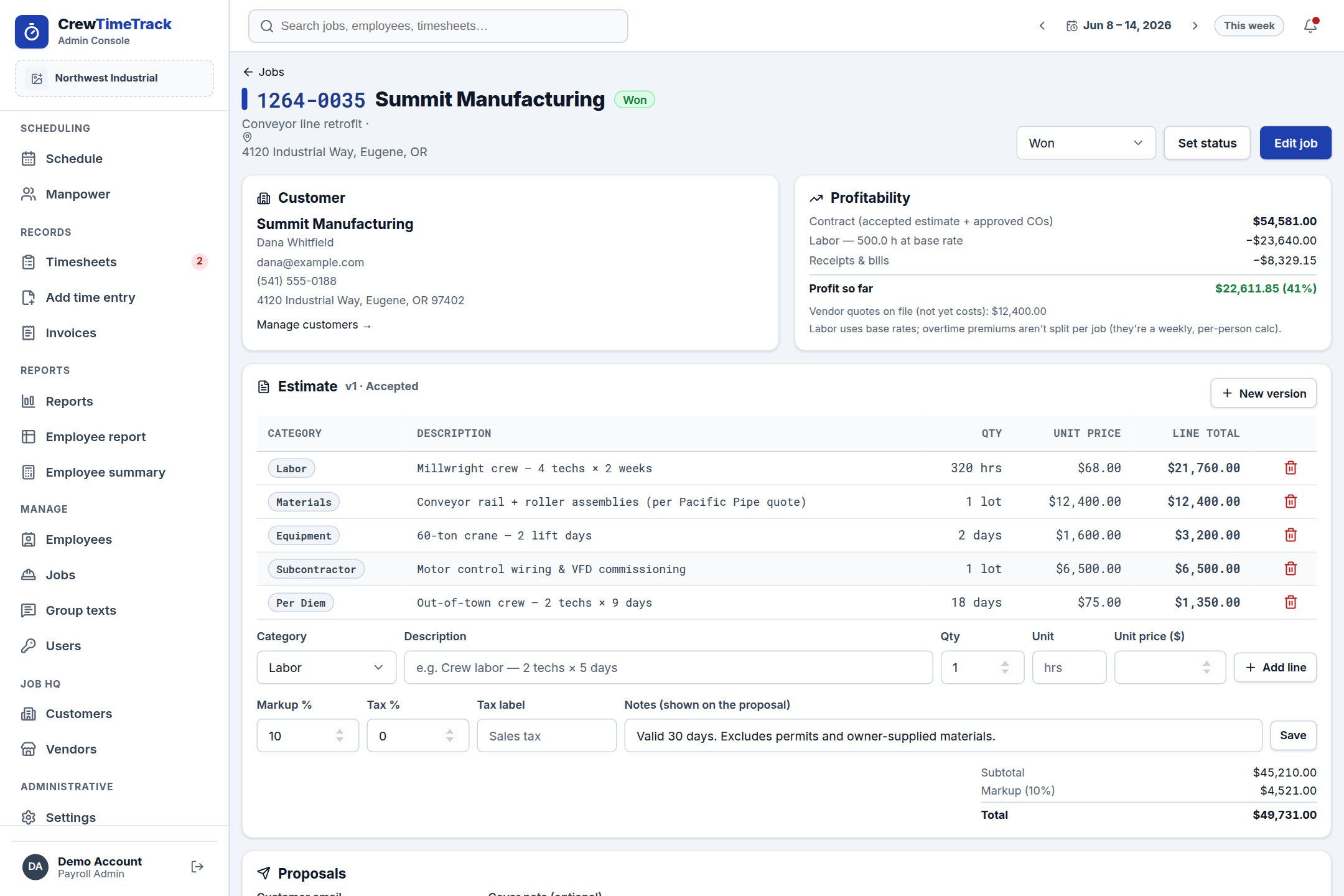
Job HQ is an optional add-on that turns CrewTimeTrack into a tool for running the whole job — not just the hours. It's admin-only (your crew's texted timesheet links don't change), and it's one flat monthly price on any plan. Turn it on under Settings → Billing.
With Job HQ on, each job gets its own page — click the job number or the Open button on the Jobs list — and two new sections appear in the sidebar: Customers and Vendors.
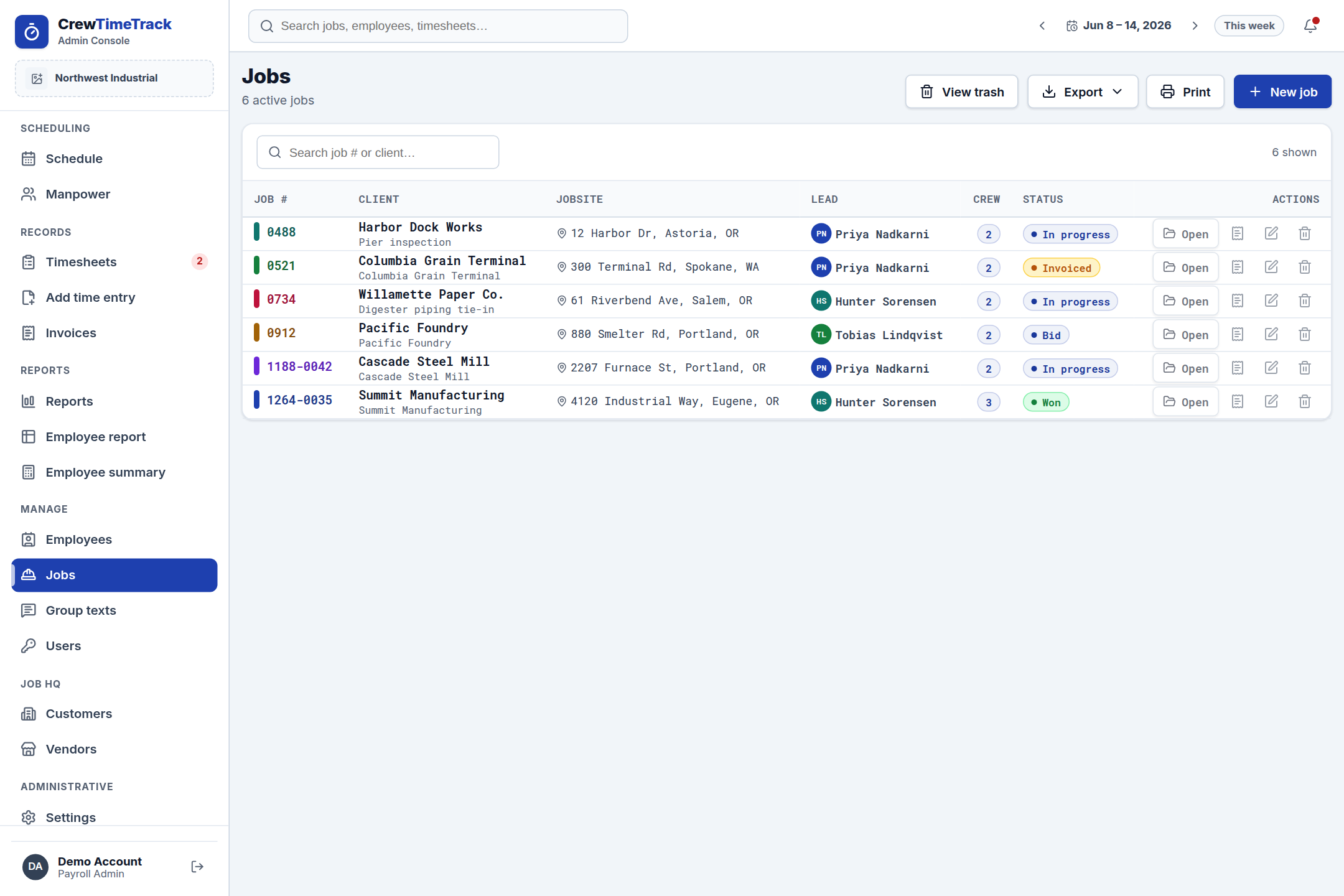
The job lifecycle
Every job moves through a simple pipeline: Lead → Bid → Won → In progress → Complete → Invoiced → Paid. Set it from the job's page or the edit form — some steps move on their own (emailing a proposal moves a Lead to Bid; an accepted proposal moves it to Won).
Customers
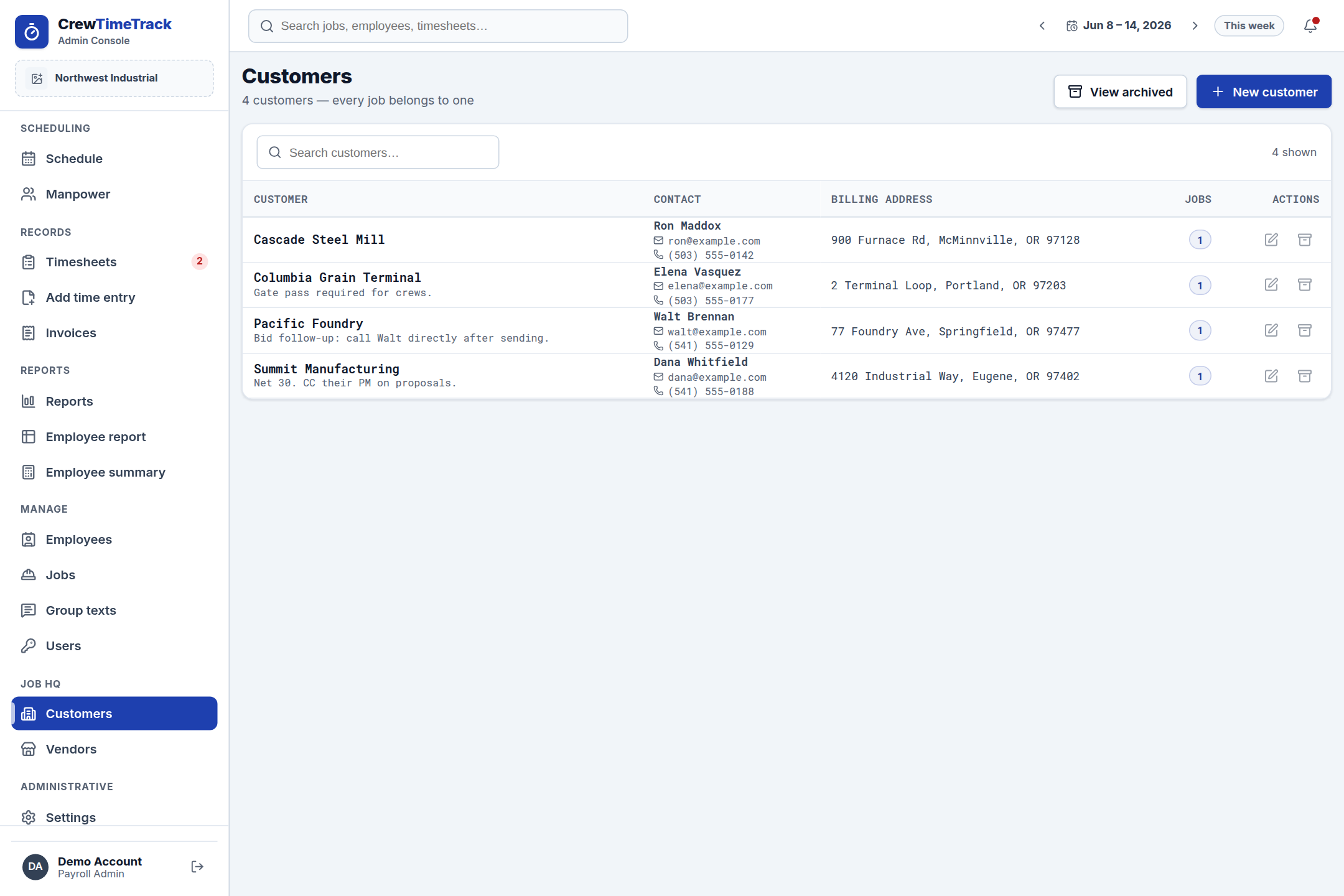
A customer is the billing party — name, contact, billing address, notes. Every job belongs to one customer, and that customer is the single source of truth for who you're billing.
When you create or edit a job, the Customer field autocompletes from your existing customers. Pick one to link the job, or type a brand-new name and CrewTimeTrack creates the customer for you on the spot — no separate step. Repeat work for the same customer just gets a new job number under that same customer.
Click a customer name anywhere (the Customers list, or the Customer card on a job) to open their customer page: contact details, every job they've had, and all their invoices with a running total billed.
Auto job numbers
Under Settings → Jobs you can turn on automatic job numbers with an optional prefix
(for example, prefix 2026- and counter 35 produces 2026-35, then 2026-36, …).
Typing a number by hand still works — either way, CrewTimeTrack checks the number is
unique before saving.
Estimates (bids)
Each job carries a line-item estimate: Labor, Materials, Equipment, Subcontractor, Travel, Per diem lines with quantity × unit price, plus an overall markup % and an optional tax line (set your default rate under Settings → Jobs). Revising a bid? New version copies the current lines so the old version stays on record.
Version history & printing. Every version you've made is listed on the job with its status (current, superseded, accepted, declined). Click View / print on any version to open a branded, print-ready estimate — no proposal required. Use Print estimate on the current version to hand a customer a PDF without emailing a formal proposal.
Proposals
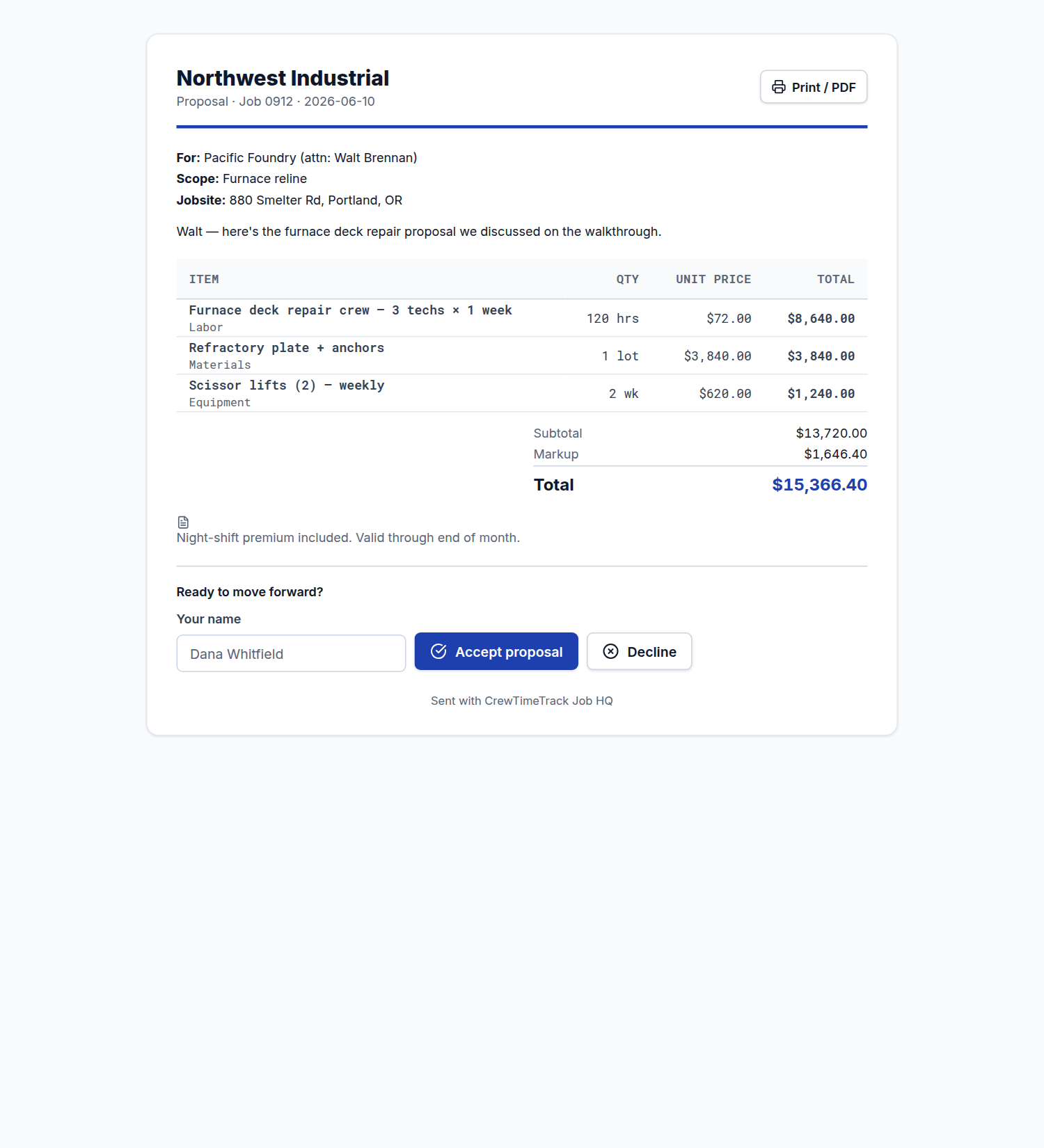
When the estimate is ready, email it straight from the job page. The send button spells out exactly what goes out — "Send estimate v2 — $12,400" — and the proposals list records which version each customer received. Your customer gets a branded proposal page with your logo and an Accept / Decline button — no login needed. Accepting flips the job to Won and stamps who responded and when. The page prints cleanly, so "Save as PDF" works from any browser.
The wording of the proposal email itself is a template you can customize — including the header/footer with your logo — under Settings → Emails.
Scheduled crew
The job page shows the crew scheduled on it — a headcount and everyone's name — with a link straight to the schedule to add or change who's on it.
Photos, documents & receipts
Upload site photos, plans, vendor quotes, receipts, and bills right on the job (PNG/JPG/WEBP/PDF, up to 25 MB each). Photos get thumbnails for fast galleries. Put the dollar amount on receipts, bills, and quotes — those numbers feed the profitability view. Your plan includes a storage allowance; heavy photo users pay a small per-GB charge shown on the Billing tab.
Change orders
Scope changed after the bid? Add a change order with the amount (negative for a deduction). Approved change orders roll into the job's contract total. Each one has a Print button that opens a branded, one-page change order with a signature line — save it as a PDF to email or hand to the customer for sign-off.
Vendors
Suppliers and subs whose quotes, receipts, and bills you attach to jobs. Manage them under Vendors in the sidebar. Click a vendor to open their page: contact details plus every document of theirs across all your jobs, with the dollars on file and a link back to each job. (Vendors are who you buy from; customers are who you bill — a job has one customer and can have many vendors.)
Profitability
The job page shows a live estimate vs actual view: the contract total (accepted estimate + approved change orders) against labor from your crew's real timesheets, per diem, and the receipts/bills you've uploaded — with profit and margin so far.