
Add Time Entry
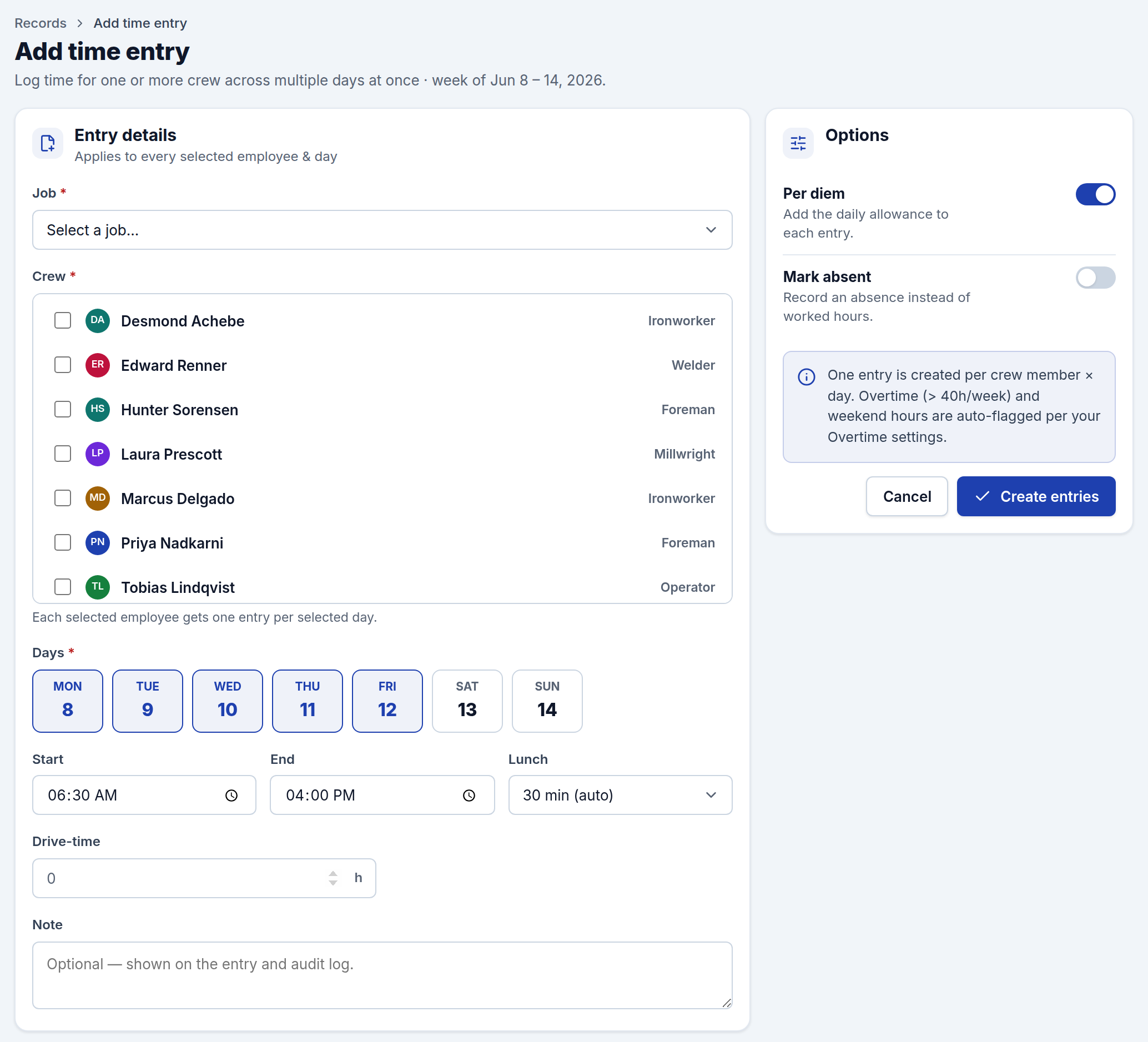
Add Time Entry lets office staff log hours on behalf of the crew — for one person or a whole crew, across as many days as you need, in a single pass. It's the fastest way to enter a week of time when crews aren't submitting their own, or to fill in a gap.
Every entry you create here lands in Timesheets and feeds your invoices and reports.
Creating entries
The form applies one set of details to every crew member and day you pick:
- Job — choose the job these hours are for.
- Crew — check one or more crew members. Each selected person gets their own entry.
- Days — pick the days in the week (weekdays are pre-selected). Each selected person gets one entry per selected day.
- Start / End / Lunch — the shift times and whether to deduct lunch:
- 30 min (auto) deducts a lunch automatically on shifts long enough to qualify under your lunch rule.
- 0 min never deducts a lunch.
- Drive-time — optional billable drive hours to add to each entry.
- Note — an optional note that shows on the entry and in the audit log.
Press Create entries and CrewTimeTrack creates one entry per crew member × day.
Options
- Per diem — add the daily per-diem allowance to each entry (uses your per-diem rule).
- Mark absent — record an absence instead of worked hours. Absent entries count zero paid hours but keep the record.
Overtime and weekends
You don't flag overtime here. CrewTimeTrack classifies hours automatically when it builds reports and invoices — hours over your weekly threshold and weekend hours are split into overtime per your Overtime settings.
Choosing the week
The form works on one week at a time. Use the week selector in the top bar to move to the week you're entering time for; the day pickers update to match.